Connect the Crisp MCP Server to Mistral Le Chat to access your Crisp workspace through supported MCP tools.
This guide covers connector setup, authentication, and a first test in Le Chat. For token generation and general server configuration, see the MCP Server Quickstart.
Prerequisites
Before you begin, make sure you have:
- Access to Le Chat from Mistral.
- A Crisp workspace and a valid MCP Server authentication token.
- The permissions required for the Crisp data and operations you want to access.
If you do not have a token yet, follow the authentication instructions in the Quickstart.
Connect Crisp to Mistral
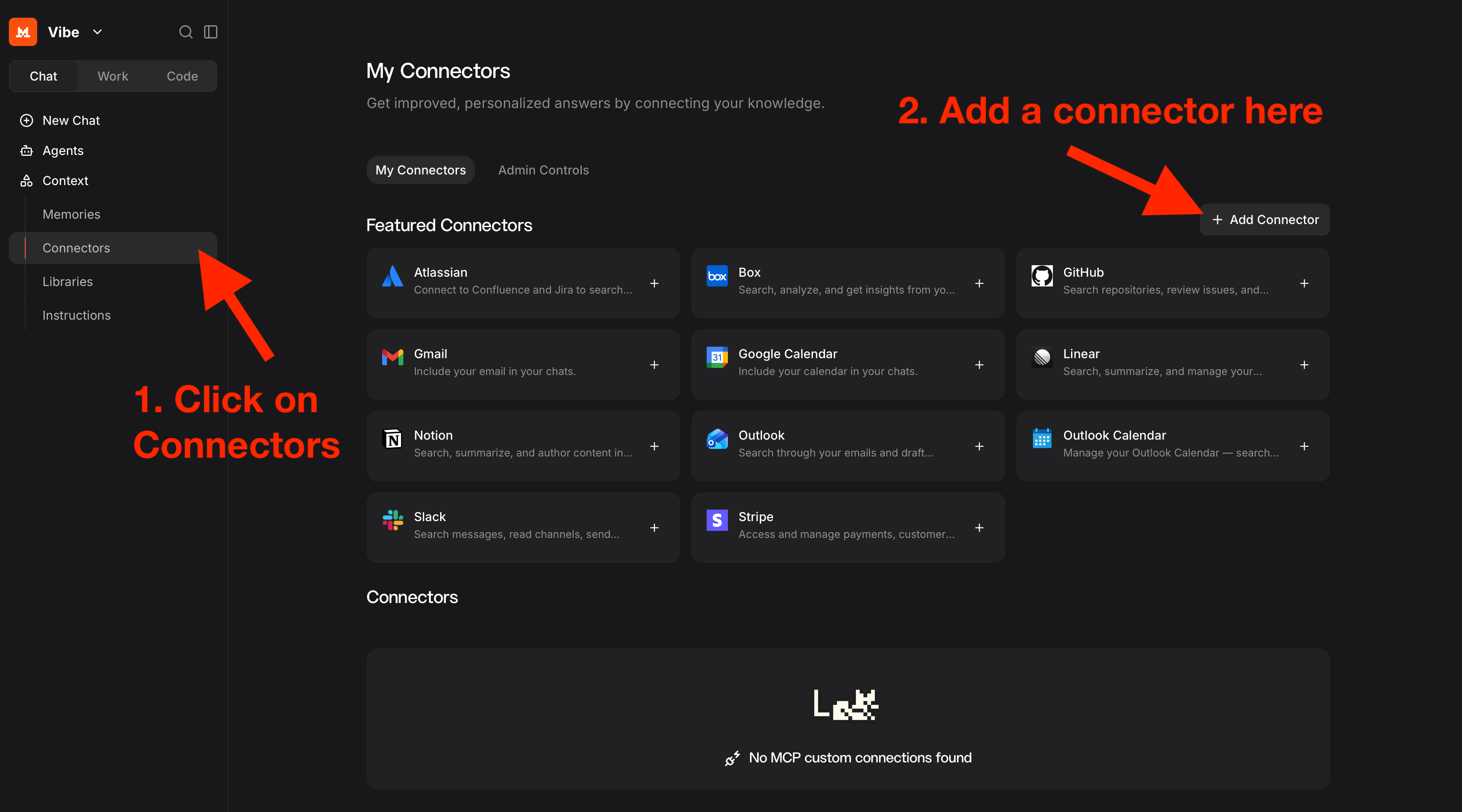
- Open Le Chat and go to the connectors section. Choose the option to add a connector.
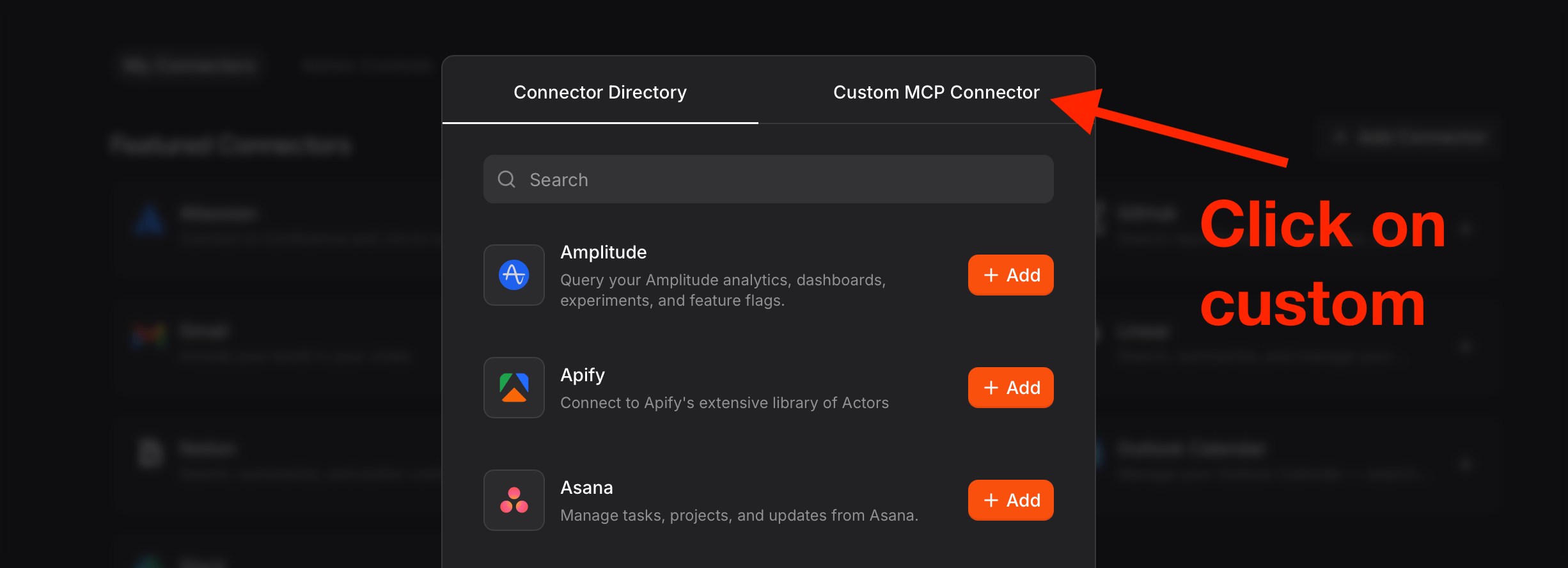
- Select Custom MCP Connector.
- Name the connector Crisp and enter the MCP Server URL:
https://api.crisp.chat/mcp/
- Choose API Token as the authentication method.

- Enter your Crisp MCP Server token using Bearer authentication, then save the connector.
The Crisp MCP Server expects this HTTP authorization header:
Authorization: Bearer <CRISP_MCP_SERVER_TOKEN>If Le Chat provides a dedicated token field, enter your token in that field and use the Bearer authentication option. Do not paste the placeholder <CRISP_MCP_SERVER_TOKEN> literally.

Once saved, make sure the Crisp connector is available for the conversation in which you want to use it.
Verify the connection
Open a new conversation in Le Chat and ask:
Get the information about my Crisp workspace.
Le Chat should use the get_website_information tool and return information about your workspace.
You can also test with a conversation request:
List the latest conversations in my Crisp workspace.
This should use list_latest_conversations to retrieve recent conversations, provided your token has the required permissions.
If the request fails, check that the Crisp connector is enabled and that its authentication settings are correct.
Use Crisp tools
Once the connector is working, you can ask Le Chat to use supported Crisp operations, for example:
- Conversations: "Find my latest Crisp conversations."
- CRM: "Search my Crisp contacts for this email address."
- Knowledge Base: "Retrieve the content of this Knowledge Base article."
- Internal notes: "Add an internal note to this conversation."
See Available Tools for the complete list of operations.
Troubleshooting
Le Chat cannot connect to the MCP Server
- Confirm the server URL is
https://api.crisp.chat/mcp/. - Check that your MCP Server token is valid.
- Confirm you selected API Token authentication with the Bearer option.
- Make sure the token was entered in the correct field and has not been truncated or copied with extra spaces.
Crisp tools do not appear in Le Chat
Check that the custom connector was saved and is available in the conversation. If the connector is working but a specific tool is missing, check the Available Tools reference.
A tool returns a permission error
Crisp MCP Server access follows the permissions associated with the authentication token. Make sure your token permits the requested operation. See the MCP Server Quickstart for authentication details.