Connect your tools and services to Hugo using the Model Context Protocol (MCP).
What is MCP?
MCP (Model Context Protocol) is an open standard that defines how AI assistants connect to external tools and data sources. Think of MCP as REST API for AI agents — a universal, language-agnostic protocol that any AI can use to interact with your systems.
MCP allows Hugo to:
- Execute actions in your systems (create tickets, update records, process orders)
- Fetch data from your databases, CRMs, or APIs
- Perform complex workflows by combining multiple tools
Because MCP is a standard protocol, you can build your server in any language. Official SDKs are available for:
| Language | SDK |
|---|---|
| TypeScript | modelcontextprotocol/typescript-sdk |
| Python | modelcontextprotocol/python-sdk |
| Java | modelcontextprotocol/java-sdk |
| C# | modelcontextprotocol/csharp-sdk |
| PHP | modelcontextprotocol/php-sdk |
| Ruby | modelcontextprotocol/ruby-sdk |
| Rust | modelcontextprotocol/rust-sdk |
No-code options: Tools like Zapier and n8n can also create MCP servers without writing code, letting you connect Hugo to thousands of apps visually.
For more information, visit the official MCP documentation.
Configuring Hugo
Step 1: Open Hugo Integrations
- Go to app.crisp.chat
- Navigate to AI Agent > Integrations & MCP
- In the External MCP servers section, click Add MCP server
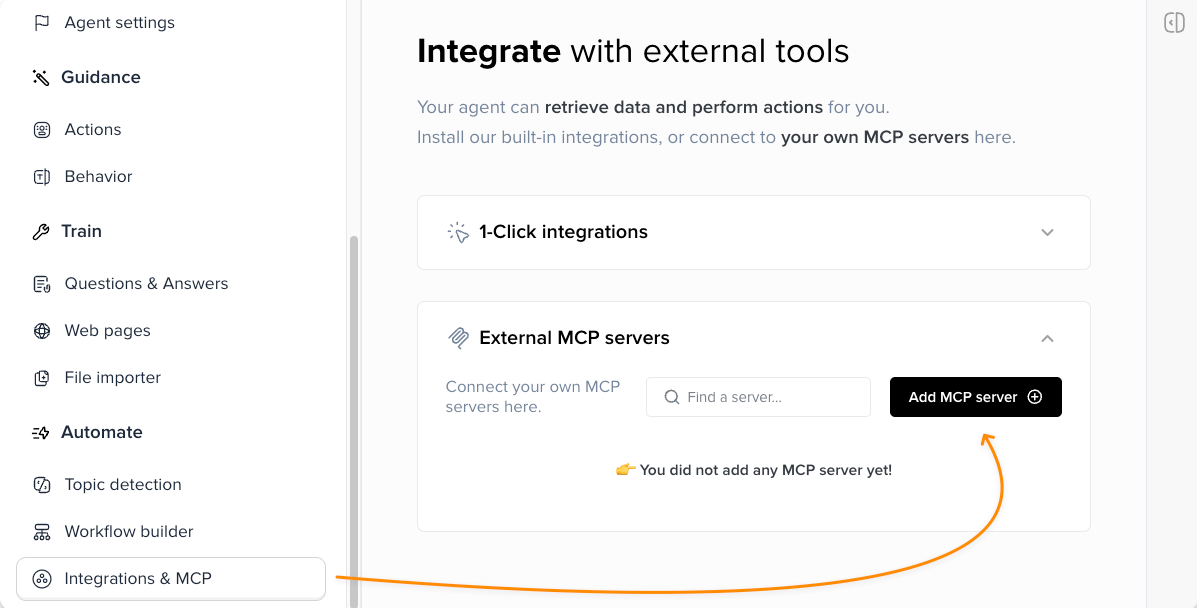
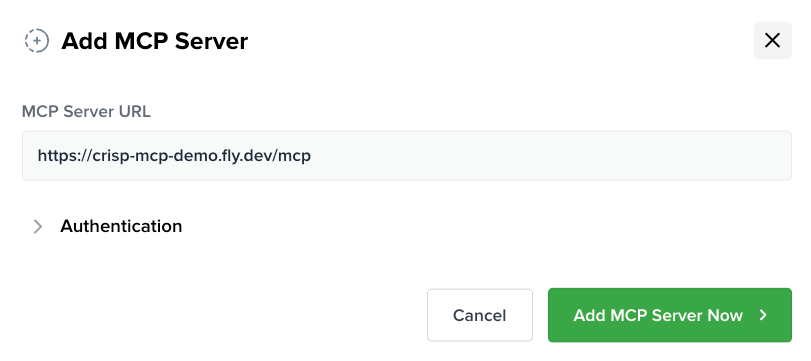
Step 2: Enter Your Server URL
Enter the public URL of your MCP server and click Add MCP Server.
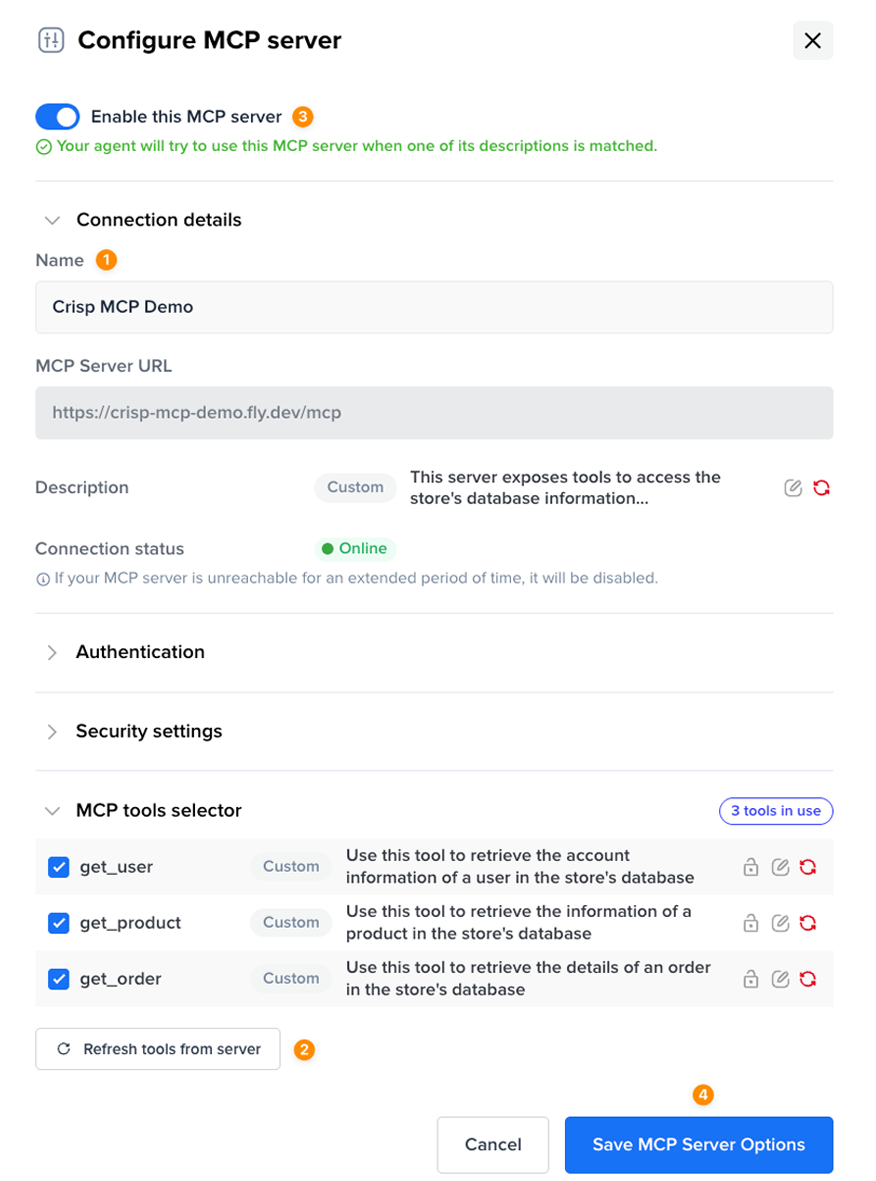
Step 3: Configure the Integration
- Name: Give your integration a descriptive name
- Description: Describe when Hugo should use this MCP server
- Enable: Toggle the integration on
- Save: Click Save changes
Your MCP server is now connected!
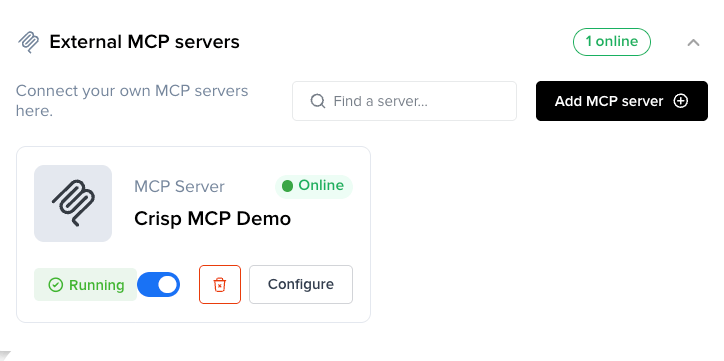
Hugo will automatically use your tools when relevant to customer conversations.
Server Description
The description is important — it helps Hugo understand when to use your MCP server. Be specific about what the server does and when it should be called.
Example:
This server provides access to the Acme store database. Use it to retrieve customer orders, get product information, and check inventory levels.
Exposing Local Servers
If you're running your MCP server locally, Hugo needs a public URL to reach it. Use a tunneling service:
Using Cloudflare Tunnel:
cloudflared tunnel --url http://localhost:3000Using ngrok:
ngrok http 3000Both tools will give you a public URL (e.g., https://abc123.ngrok.io) that you can use in Hugo.
Authentication
Hugo supports three authentication methods:
| Method | Use Case |
|---|---|
| None | Public APIs or non-sensitive data |
| Bearer Token | API token authentication |
| Basic Auth | Username/password authentication |
To configure authentication:
- Select your MCP integration in Hugo
- Under Authentication, choose your method
- Enter your credentials
User Verification
You can require users to verify their identity before Hugo calls sensitive tools. When enabled, Crisp sends the user an OTP code via email or SMS.
To enable:
- Select your MCP integration
- Click Manage on the tool
- Toggle Require user identification verification
Recommended for tools that perform actions like canceling orders or updating account information.
Testing Your Integration
Use the Playground to test your MCP integration:
- In Hugo, go to Automate > Playground
- Select your AI model
- Ask questions that should trigger your tools
Example questions:
What's the status of order #12345?
Can you search for wireless headphones?
I need to cancel my last order.
Next Steps
- Build your own MCP server with code examples
- Set up request signing for security